Results Preview
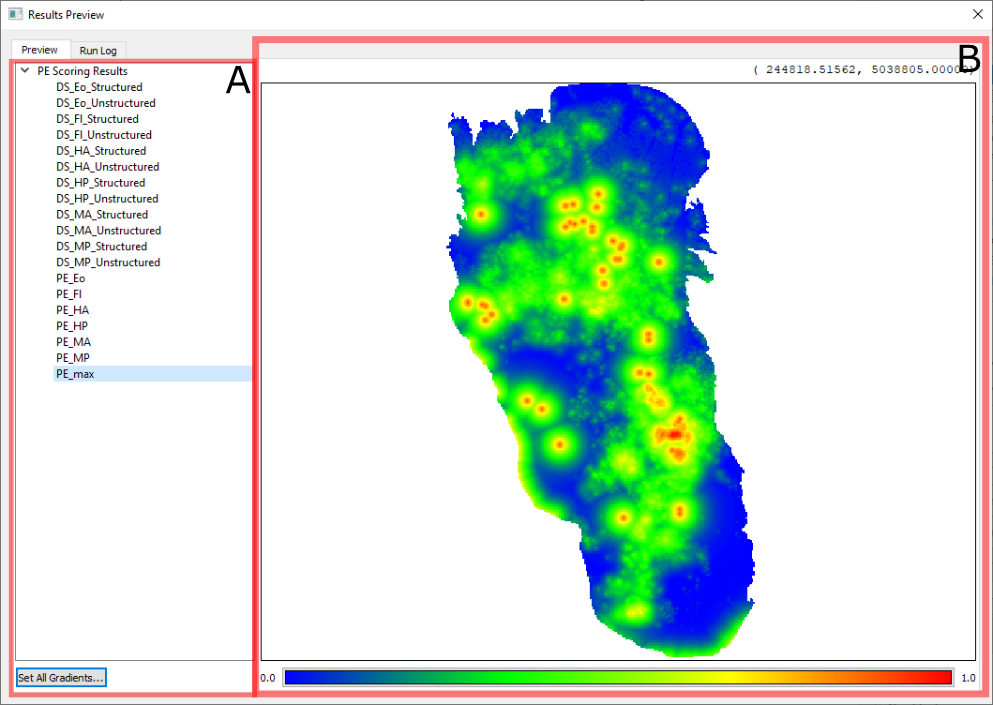
If the Display Results box is checked, in the main window, than the Results Preview dialog will appear after all tasks complete successfully. (If any processes of the tasks are unsuccessful, the user may reference the error in the Executing tasks window that opens upon selecting Run Tasks on the main window.) This dialog has two tabs available; the Run Log tab contains the log output that created the session that created the results of this preview. The contents of the Preview tab is the subject of the remainder of this section.
A. Results List
The results list pane on the left side of the view lists the output rasters under the heading with the name of the task which generated them. Clicking on and selecting a result file will open a preview in the Preview Pane on the right.
Clicking on the Set All Gradients… brings up the Gradient Dialog, and will apply the chosen color ramp for all results, essentially setting the “default” color ramp / gradient for any viewed result.
B. Preview Pane
The Preview Pane displays the results selected in the Results List on the left side of the view. Clicking on the gradient button at the bottom of the view brings up the Gradient Dialog, which will update the result being actively previewed with the new chosen gradient colors on return.
The coordinates of the mouse pointer location in the active result view will appear above the Preview Pane when the mouse cursor is positioned within its bounds.
The Preview Pane can be interacted with directly using the mouse. The following table outlines mouse interaction behavior:
Button |
Action |
|---|---|
Left |
Click-and-dragging this button pans the preview scene. |
Right |
Click-and-dragging produces a rubber band box, which is zoomed to on release. |
Wheel |
Rolling forward zooms into the scene; rolling backward zooms out from the scene. |