PE Score Task
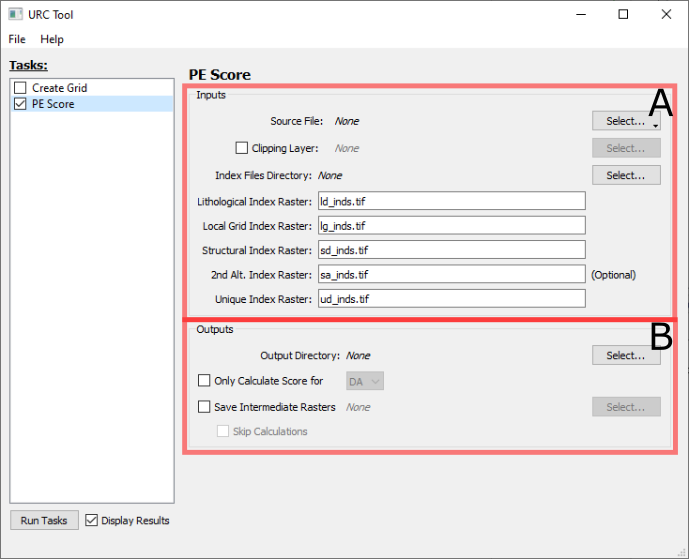
The PE Score task panel is broken down into two sections Inputs (A) and Outputs (B)
A. Inputs
The Source File is either a *.gdb directory or a *.sqlite (Spatialite) file; this should contain the layers of
vector data to be scored, labeled according to the criteria described in Creason et al. [2023]
By default, the result data conforms to the extents of the input index rasters; often, the region of interest is
smaller and more detailed than the regions covered by the combined index rasters. In these cases, a clipping *.shp
file can be provided by checking the Clipping Layer and selecting the file.
The following fields are only present if the Create Grid task is unchecked; otherwise, these values are taken from the outputs of the Create Grid task.
The Index Files Directory should correspond to the outputs directory specified in a Create Grid run. The individual Raster file names can either be absolute paths, or relative to this directory.
If any of the raster path names appear in red text are filenames that do not appear in the Output Directory and should be corrected.
All the index raster names refer to the output fields in the Create Grid task; the 2nd Alt. Index Raster field is optional, and can be left blank if not needed/present.
B. Outputs
There are a variety of raster score results which are saved as a result of the scoring calculations. Most calculations
will be saved in *.tif format in the chosen Output Directory.
By default, both Data Available (DA) and Data Supporting (DS) data are scored; however, the scoring process can be limited to only one of those options by checking Only Calculate Score for and selecting either “DA” or “DS”.
The processing of the indices and input data layers is a multistep process; to save values from the intermediate steps, check the Save Intermediate Rasters box and select a destination directory to the right. If only the intermediate rasters are of interest, the Skip Calculations box can be checked; this will bypass the final scoring calculations, and is mainly useful for troubleshooting purposes.
Upon completion of this window, the user may select Run Tasks on the main window to initiate the PE Score task. An Executing tasks window opens upon selecting Run Tasks that logs execution progress and errors. Note: PE Score and Create Grid and can be run separately or at the same time to produce results sequentially.